
Introduction
Mega888 APK installation is an Android-specific process. If your goal is only to find the Android file route, start with the Mega888 APK download page first, then use this guide when you are ready to install the file.
This article focuses on practical install checks: what an APK file is, why Android may ask for extra permission, how to open the downloaded file, and what to do if Android shows a blocked install, parse error, or app not installed message.
What Is an APK File?

APK stands for Android Package Kit. It is the file format Android uses to install apps. When an app is installed from a normal app store, Android still uses an app package behind the scenes; the difference is that the store handles the install process for you.
When you install an APK manually, you handle more of that process yourself. That is why source checks, file completion, storage space, and Android permission prompts matter before you continue.
Why This Guide Is for Android Users
APK files are made for Android phones and tablets. iPhone and iPad users should not follow APK installation steps because iOS uses a different app setup route.
- Android users should follow the APK route and permission checks.
- iPhone and iPad users should use the iOS route from the download hub.
- Windows users should follow the desktop file instructions instead.
If you are still comparing device options, use the Mega888 download hub before starting any install step.
Before You Install Mega888 APK
Do these checks before opening the APK file. They reduce the chance of repeating the same download or changing settings that were not related to the problem.
- Use a stable Wi-Fi or mobile data connection.
- Make sure the download finishes before tapping the file.
- Check that your Android version is supported by the current route.
- Keep enough free storage for the file, installation, and app data.
- Confirm the file came from the page or support route you intended to use.
Find the Android APK Route

Open the Android route from the Mega888 APK download page and review the visible file details before you continue. If the screen shows a file date, version, or instruction, treat it as the current page information rather than copying details from an old screenshot.
Allow Install Unknown Apps
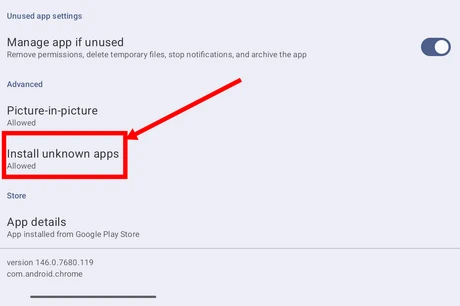
Android blocks manual app installs by default on many devices. If you downloaded the APK through Chrome, allow the permission for Chrome. If you open the file from a file manager, allow the permission for that file manager instead.
- Open Android Settings.
- Go to Apps and choose the browser or file manager you used.
- Open Install unknown apps.
- Allow from this source only for the install step.
- After installation, consider turning the permission off again.
How to Install Mega888 APK on Android
Follow the install flow in order. Most Android APK issues come from skipping the permission step, opening a partial file, or using a file that does not match the device.
Step 1: Download the Android APK file
Use the Android route and wait until the file finishes downloading. If the network drops midway, delete the partial file and download it again before installing.
Step 2: Allow the correct install permission
Enable Install unknown apps for the app that will open the APK. This is usually your browser or file manager.
Step 3: Open the downloaded APK
Open your Downloads folder, tap the APK file, and review the Android prompt. If Android blocks the action, go back and check whether permission was enabled for the right app.
Step 4: Install and open the app
Tap Install, wait for the process to finish, then open the app. If the app opens normally, continue with the login or setup guidance that matches your account path.
Step 5: Move to setup or login checks
After installation, use the Mega888 login beginner guide if you need help with first login, network checks, or account safety.
Common Mega888 APK Installation Errors
If installation fails, match the message to the checks below before downloading a new file or changing more Android settings.
App Not Installed
- Check free storage and remove unused files if space is low.
- Delete any incomplete APK file and download again on a stable connection.
- Remove an older conflicting install only if you know it is the same app route.
- Confirm the Android device meets the current compatibility notes.
Install Blocked or Unknown Sources Not Enabled
- Return to the Install unknown apps setting.
- Check whether permission was allowed for the browser or file manager you used.
- Read the warning prompt carefully before continuing.
Parse Error
- Delete the current APK file.
- Download the file again and wait until the transfer is complete.
- Check whether the Android version is too old for the current package.
- Restart the device before trying again if the error repeats.
App Installs but Crashes
- Restart the phone and close background apps.
- Clear the app cache if Android settings allow it.
- Check whether a newer file route or update notice is available.
- Contact support if the same crash continues after basic device checks.
Download Fails or Will Not Start
- Switch between Wi-Fi and mobile data to compare the connection.
- Try another browser on the same Android device.
- Pause VPN or network filters only if they are clearly blocking the page.
- Retry later if the source page does not respond.
Source and Security Checks
Android warnings are there to slow the process down and make users review the file. Do not ignore prompts automatically. Check the file name, route, and permission request before deciding whether to continue.
- Avoid random third-party APK mirrors.
- Do not install if the file name or prompt looks unrelated.
- Do not share passwords, one-time codes, or payment details during installation.
- Ask support for clarification if the app route or permission request is unclear.
If you only need a simple explanation of APK files and Android permissions, read the Mega888 APK guide before returning to installation steps.
What to Read Next
Choose the next guide based on where you are in the process.
Frequently Asked Questions
Is this the Mega888 APK download page?
No. This is an installation guide. Use the Mega888 APK download page when you need the Android file route.
Is Mega888 APK free to install?
The APK file may be available without a file fee, but account access, deposits, promotions, and platform rules depend on the provider and support process.
Does installing an APK root my phone?
No. Installing an APK is not the same as rooting a device. It is a manual Android app install process, while rooting changes deeper system access.
Why does Android block the APK install?
Android may block manual installs until you allow Install unknown apps for the browser or file manager that opens the APK.
What should I do if antivirus flags the APK?
Stop and review the file source, file name, and warning details. If you are not sure the file matches the route you intended to use, do not continue until support confirms the correct path.
Can iPhone users follow this guide?
No. APK files are for Android. iPhone and iPad users should follow the iOS route from the download hub.
Final Thoughts
A smoother Mega888 APK install starts with the right order: confirm Android, download the complete file, allow the correct permission, install, then move to login or setup checks.
If an error appears, treat the message as a clue. Check storage, network, Android compatibility, and the permission source before repeating the same download.